The Spreadsheet-to-CRM Transition
Most home services businesses start with spreadsheets. A list of customers, a list of jobs, a list of things to follow up on. Eventually the spreadsheets multiply, nothing is connected, and you're spending 30 minutes before every appointment trying to piece together what you know about the customer.
A CRM doesn't have to be complicated. For a home services business, it needs to do four things well:
- Store customer and address information
- Link service history to customers
- Track follow-ups and upcoming appointments
- Allow basic filtering for outreach (all customers due for annual service, all customers in a specific neighborhood)
Choosing the Right Tool
Jobber, Housecall Pro, or ServiceTitan: Purpose-built for home services. Include scheduling, invoicing, and customer management. Best for businesses with 3+ field staff.
HubSpot CRM (free tier): Good for smaller operations that need customer tracking without scheduling features. Works well if you book through phone/email and schedule separately.
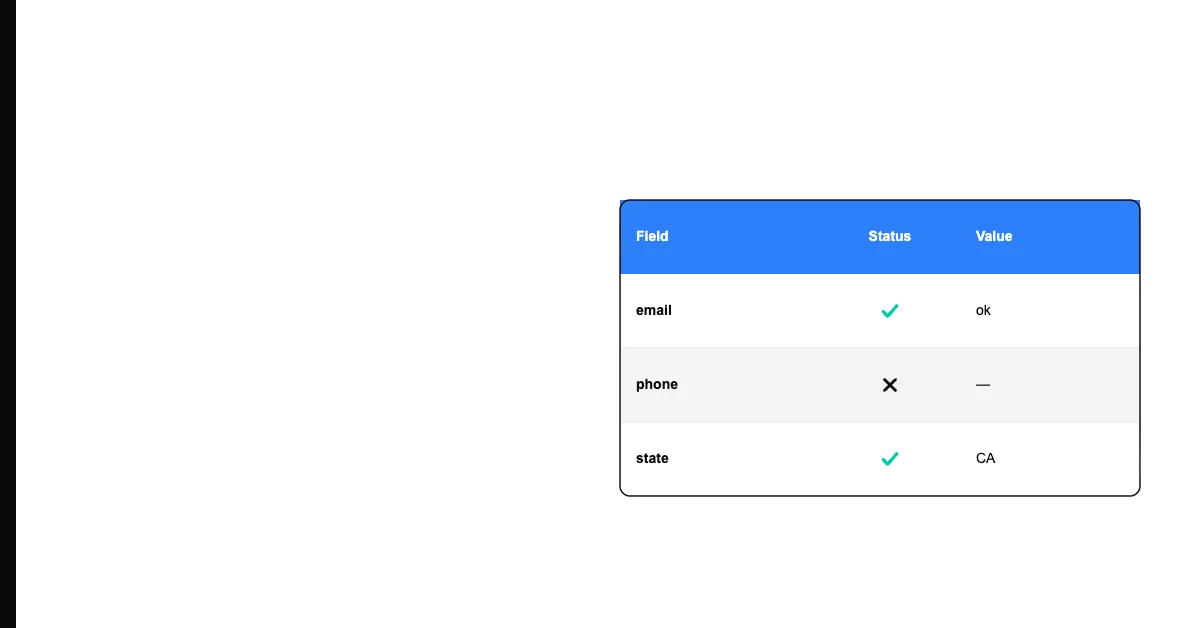
Sohovi finds gaps, duplicates, and format errors in your CRM data — so your team is working from records they can trust.
Airtable or Notion: Highly customizable databases that work like a CRM if you set them up correctly. Good for very small businesses that want control over their data structure.
Avoid: Generic CRMs designed for sales teams (Salesforce, Pipedrive) — they're built for deal pipelines, not service appointments.
The Data Structure That Matters
For a home services CRM, every customer record needs:
- Full name (separate first and last name fields — critical for personalization and sorting)
- Service address (separate street, city, state, zip — not one combined field)
- Phone number (mark as mobile vs. landline — SMS for mobile, call for landline)
- Service type(s) they use
- Last service date
- Next service due date (calculated or manually set)
- Notes (free text — what makes this customer tick, special access instructions, pets, etc.)
Every service record needs:
- Customer reference (linked to the customer record)
- Service address
- Date
- Service type and description
- Technician who performed the service
- Price charged
- Payment status
Migrating From Spreadsheets
Before migrating to a CRM:
- Deduplicate your customer spreadsheet
- Standardize address formats
- Make sure every customer has at least name + phone or email
- Map your spreadsheet columns to the CRM fields
Most CRMs have an import wizard. Test with 10 records first before importing your full list.
Sohovi validates your dataset before it enters the warehouse — catching format errors, nulls, and duplicates at the source.
Getting Your Team to Actually Use It
The best CRM is the one your team uses consistently. Keep the required fields minimal at first. Add complexity only when you have evidence the team is consistently filling in basics.
Daily habit: at the end of every job, the tech logs the visit before leaving the customer's property. If it's not logged same-day, it often never gets logged.
Before You Migrate, Profile What You Have
The deduplication and standardization steps above are the part most businesses skip — and the part that determines whether your new CRM starts clean or inherits the same mess. Run your spreadsheet export through Sohovi first to see duplicate rate, missing fields, and address-format inconsistencies before you map columns and import. It's also worth having a plan for service history data specifically, since that's the field most commonly lost or garbled in a spreadsheet-to-CRM migration.