Use this checklist before any Salesforce data migration — new org setup, legacy CRM migration, or major data restructuring. Each item includes what happens if you skip it.
Phase 1: Pre-Export (Before You Pull Data From the Source)
1. Document the full field mapping
Create a spreadsheet: source field → target Salesforce field, data type in source, data type in target, required/optional, transformation rule.
If you skip it: You discover mid-import that your source has a "Status" field with 12 values that don't map cleanly to Salesforce's "Stage" picklist. You start improvising and introduce inconsistency.
Sohovi finds gaps, duplicates, and format errors in your CRM data — so your team is working from records they can trust.
2. Inventory all picklist values in the source system
Export every unique value from every picklist/dropdown field. Compare against the valid values in your Salesforce picklist fields.
If you skip it: Mismatched picklist values silently import as blank in Salesforce (default behavior for unrecognized values). Your "Closed Won" deals import as empty Stage. Your pipeline reports are useless.
3. Identify and document record ownership mapping
Who owns records in the source system? How do those map to Salesforce users? Document every owner ID → Salesforce user ID mapping.
If you skip it: All migrated records land on a single default owner (often an admin), causing the entire team to lose their pipeline view.
4. Establish the record count baseline
Export the total record count per object from the source system. This is your validation target — you'll compare post-import counts against this.
If you skip it: You have no way to detect if records were silently dropped during migration.
Sohovi validates your dataset before it enters the warehouse — catching format errors, nulls, and duplicates at the source.
5. Identify parent-child relationships
Which objects have lookups to parent records? (Contacts → Accounts, Opportunities → Accounts, Cases → Contacts). The parent must exist in Salesforce before the child is imported.
If you skip it: Child records fail to import because their parent IDs don't exist yet. Or they import with blank lookups.
Phase 2: Data Prep (The Cleanup Before Import)
6. Deduplicate across all objects
Duplicate contacts, accounts, and leads in your source data become duplicate records in Salesforce — amplified by the CRM's duplicate rules.
Run dedup on: Account name + website, Contact email, Lead email. See the dedicated dedup guide for exact-match dedup, and the fuzzy matching guide for variants.
If you skip it: Salesforce merging duplicates post-go-live is painful — activity history and relationships get tangled.
7. Validate required fields are populated
Salesforce required fields will reject records where those fields are blank. Find them all now.
In Excel: Filter each required-field column for blanks. Decide: fill with a default, ask the business, or exclude the records.
If you skip it: Import fails partially — some records load, some don't, and you spend hours figuring out which ones failed and why.
8. Standardize date formats to YYYY-MM-DD (ISO 8601)
Salesforce accepts several date formats, but ISO 8601 is the most reliable across all import tools (Data Loader, Import Wizard). Mixed formats cause silent parse errors.
See: CSV Dates Are Wrong in Excel — Fix Guide.
If you skip it: Date fields import incorrectly or blank. Close dates on opportunities are wrong, meaning your pipeline aging report is wrong from day one.
9. Standardize phone numbers to E.164 format
Salesforce's phone field is free text, but if you're using Salesforce for dialing (CTI) or SMS, the format matters. E.164 (+14155552671) is the only format dialers and SMS providers accept reliably.
See: How to Standardize Phone Numbers in a Spreadsheet.
If you skip it: Dialers fail for a percentage of calls. Your SDR team spends the first week post-go-live manually fixing phone numbers.
10. Validate state/country field values against Salesforce's list
If you've enabled Salesforce's State and Country/Territory picklists, the state and country values must exactly match Salesforce's list. "USA" won't work — it must be "United States". "NY" won't work — it must be "New York".
If you skip it: All records with non-matching state/country values import with blank state/country fields.
11. Check and fix leading zeros in IDs and ZIP codes
Salesforce stores many fields as text, but if you've been working in Excel, ZIP codes like 02134 may have been silently converted to 2134.
See: Excel Keeps Removing Leading Zeros — Fix Guide.
If you skip it: ZIP codes and postal codes are wrong for any addresses starting with 0.
12. Trim whitespace from all text fields
Trailing spaces in Account names cause two records to look identical visually but be treated as different entities. "Acme Corp" and "Acme Corp " will be two accounts.
In Excel: Apply =TRIM() across all text columns and paste as values before import.
If you skip it: Lookups and relationships break silently. Sales reps create new accounts for companies that already exist.
13. Validate email address formats
Salesforce will reject records with invalid email formats on required email fields. Find them before import.
If you skip it: Records fail with a cryptic "INVALID_EMAIL_ADDRESS" error in your import log.
14. Remove or flag test records from the source system
Production systems accumulate test records: "Test Account", "ZZZ Do Not Call", "0000 Test Lead". These should not migrate.
If you skip it: Your Salesforce org launches with junk data that your sales team will repeatedly encounter and have to manually clean up for months.
Phase 3: Import Validation (After Migration, Before Go-Live)
15. Verify record counts match your baseline (from item 4)
Run a SOQL query or report in Salesforce for each object count. Compare against your pre-migration baseline.
If record counts don't match: Check your import error log — some records likely failed on validation rules. Identify and fix the failures before go-live.
16. Spot-check 50 records manually
Randomly select 50 migrated records and compare them field-by-field against the source. Verify that data types, values, and relationships are correct.
If you skip it: Systematic errors (a field mapped to the wrong column) pass all count checks but are caught here.
17. Verify relationship integrity
For every Lookup and Master-Detail relationship: are child records correctly linked to their parents?
SELECT COUNT(Id), Account.Name FROM Contact WHERE AccountId != null GROUP BY Account.Name LIMIT 10
Run similar queries to check Opportunity → Account, Case → Contact, etc.
If you skip it: Contacts are in Salesforce but floating without Account associations — invisible to account-based reporting.
18. Verify picklist values are populated correctly
Run a report grouped by every migklist field (Stage, Type, Lead Source, Industry). Do the values look correct? Are there unexpected blank values?
If you skip it: Pipeline by Stage shows "blank" as your biggest stage, meaning a large portion of your data didn't get its Stage value.
19. Verify no truncated field values
Salesforce text fields have character limits (255 for standard text fields, up to 131,072 for Long Text Area). If your source had longer values, they get silently truncated.
Check for: Any field where the last few characters look cut off, or where values end abruptly.
Phase 4: Post-Go-Live (First Week)
20. Enable Salesforce duplicate rules before any new data entry
Salesforce's built-in duplicate management (Duplicate Rules + Matching Rules) prevents future duplicates. Enable them before users start creating new records.
If you skip it: Within the first week, new duplicates are created that contradict the dedup work you did in Phase 2.
21. Re-enable validation rules that were temporarily disabled for migration
Many admins disable Salesforce validation rules during import to allow historical data (which may not meet current rules) to load. Re-enable them after migration.
If you skip it: Your validation rules don't apply to new records, and data quality degrades immediately post-launch.
22. Have a random sample of 10 users verify their own records
Ask 10 users across teams to look at 5–10 of their own records and confirm they look correct. They know their data better than any automated check.
If you skip it: User trust in the new system tanks when they find their pipeline missing or their accounts wrong on day 1.
23. Run post-go-live data quality baseline report
Generate a quality report 48–72 hours after go-live: null rates on required fields, duplicate rate, picklist blank rate, relationship completeness. This becomes your baseline for ongoing monitoring.
If you skip it: You have no way to detect if data quality is degrading post-launch from normal use patterns.
Using Sohovi for the Data Prep Phase
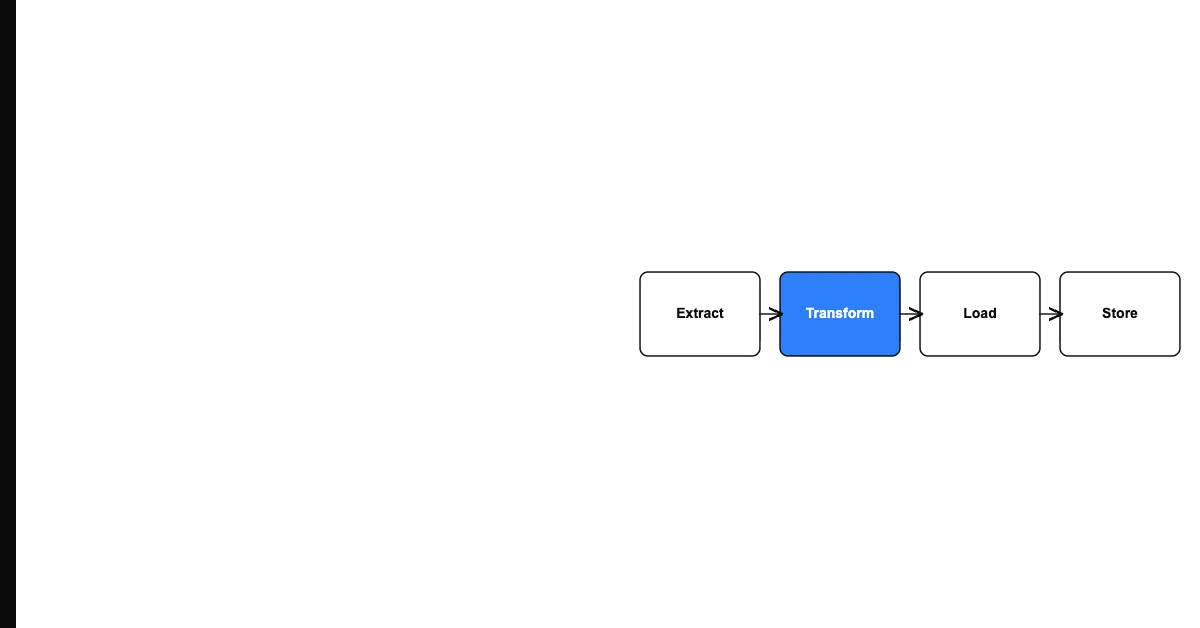
Items 6–14 of this checklist are the data prep phase — deduplication, completeness checks, format standardization, email validation, whitespace trimming, leading zero checks. In Excel, this takes 2–5 days on a typical migration dataset (10,000–100,000 records). In Sohovi, you upload the export and profile all of these issues in one pass, then apply fixes systematically.
The output: a clean CSV file that passes all 14 data prep checks before it ever touches your Salesforce import tool.
Frequently Asked Questions
Q: Should I migrate all historical data or just active records? A common mistake is migrating everything — including closed/lost deals from 5 years ago and contact records that haven't been touched since. Consider what your team actually needs: usually active Accounts, active Contacts, open Opportunities, and Opportunities closed in the last 12–24 months. Historical data increases migration complexity and ongoing storage costs without proportionate value.
Q: How do I handle Salesforce IDs that need to be preserved for external integrations? If external systems reference Salesforce record IDs, you'll need to either: (a) migrate with the same IDs (possible with full org migrations), or (b) create an external_id field to store the old system's IDs and update external system references. Plan this before migration starts.
Q: My import keeps failing with "INVALID_TYPE" errors. What does that mean? You're importing a value into a field that expects a different data type — most commonly a text value in a number field, or a number in a picklist field that expects a string. Check your field mapping document and compare the data types of source and target fields.
Items 6–14 of this checklist take days in Excel or an afternoon in Sohovi. Upload your Salesforce export and work through the data prep phase free — before the import, not after.